 iPadOS · AUv3
AUB / AUDIO USB BRIDGE
Move audio
between iPads
via USB.
Play on one iPad. Mix on another.
Four Send plug-ins. Four Receive plug-ins. Four stereo streams.
See how it worksApp Store release coming soon.
Use your DAW’s Ableton Link for sync.
- Connect your music apps.Send audio between iPad DAWs.
- Keep four streams separate.Route instruments, tracks or mixes.
- Fine-tune the timing.Use a measured offset suggestion.
SEE HOW IT WORKS
From one iPad to the other.
Connect your iPads.
Use a supported wired USB network. Open AUB on each iPad.
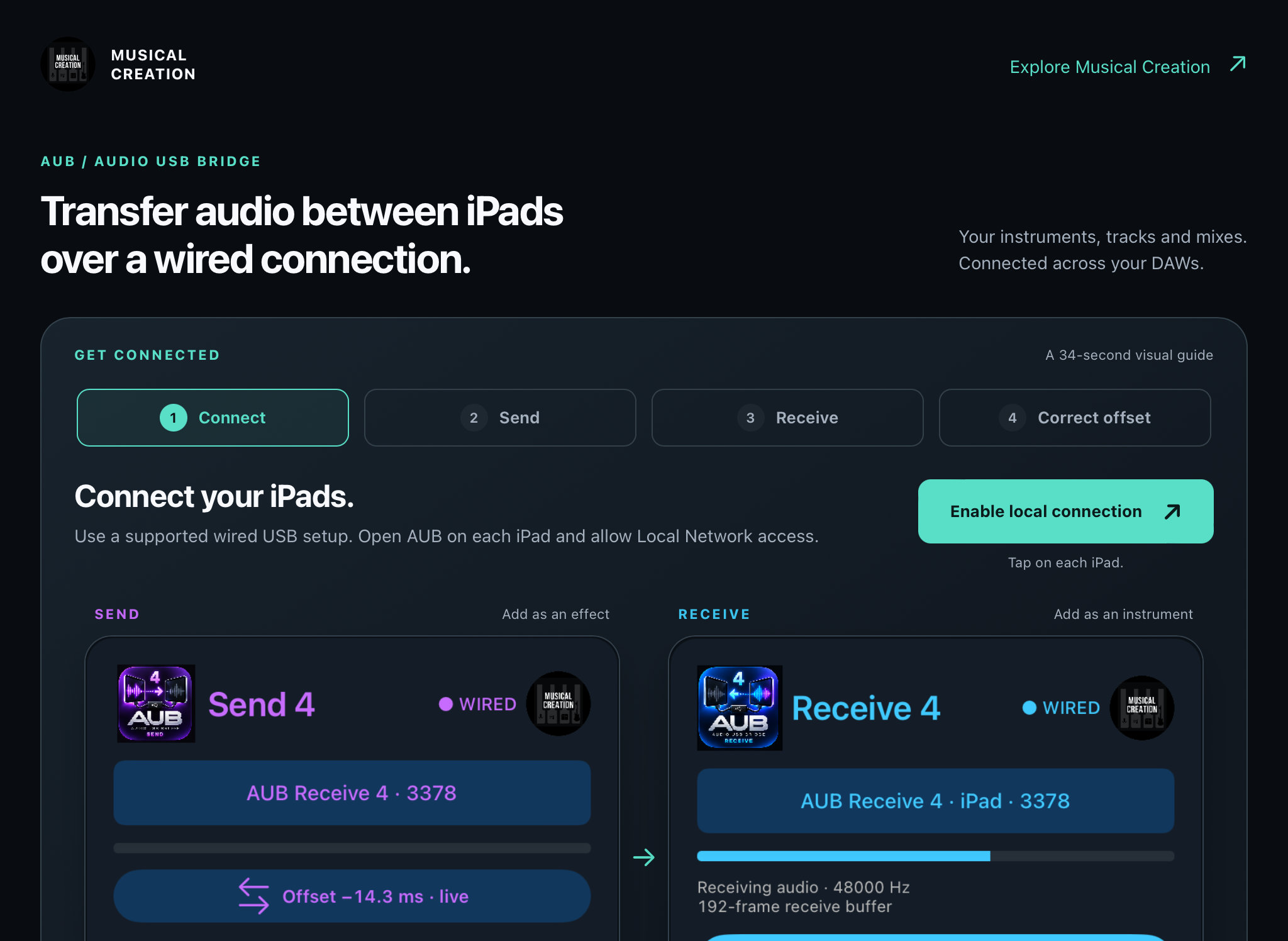
App screenshot · Allow Local Network access when asked.
Actual plug-in screenshots · Tap to enlarge.
EIGHT PLUG-INS INCLUDED
4 Send. 4 Receive.
Match the numbers.
Each pair carries one stereo stream.
| SendInsert as an AUv3 effect after your sound. | ReceiveLoad as an AUv3 instrument/source on the other iPad. |
|---|---|
 Send 1 Send 1 |  Receive 1 Receive 1 |
 Send 2 Send 2 |  Receive 2 Receive 2 |
 Send 3 Send 3 |  Receive 3 Receive 3 |
 Send 4 Send 4 |  Receive 4 Receive 4 |
BRING THE TIMING TOGETHER
Hear it together.
Line it up.
Your DAWs handle Ableton Link. AUB suggests an offset to help align the audio.
Enable Link in both DAWs on a compatible network.
Set your software’s sync to compensate for the suggested offset.
What do I need?
Two iPads, a supported wired network setup, and an AUv3-compatible DAW on each. Use the cable and adapters your iPads need to establish a network connection. A charging cable alone does not guarantee a compatible connection.
Match sample rates, allow Local Network access, unmute Receive and choose your output. Use Link-capable DAWs if you want shared tempo and beat sync.
Is Receive an Inter-App Audio plug-in?
Receive is an AUv3 instrument/source. Add it from your DAW’s instrument or source menu. Send is an AUv3 effect insert. Both plug-in types are included in AUB.
How do I adjust the receive buffer?
Tap Receive buffer below the meter. Start at the default 192 frames. Lower settings reduce delay; higher settings help prevent dropouts.
The milliseconds describe the receive buffer only: 192 frames is 4.0 ms at 48 kHz. Total audio latency also depends on your DAWs, devices and connection. Saved projects keep their chosen buffer.
How does offset correction work?
Tap the offset reading with the info icon in Send. Wait for it to show “live”, then adjust your sending software’s sync offset from zero. Check its sign convention and listen to the result.
The suggestion estimates beat-grid alignment. It is not a measurement of total audio latency, and adjusting sync does not remove physical audio delay. Your DAWs run Ableton Link; AUB carries the audio.