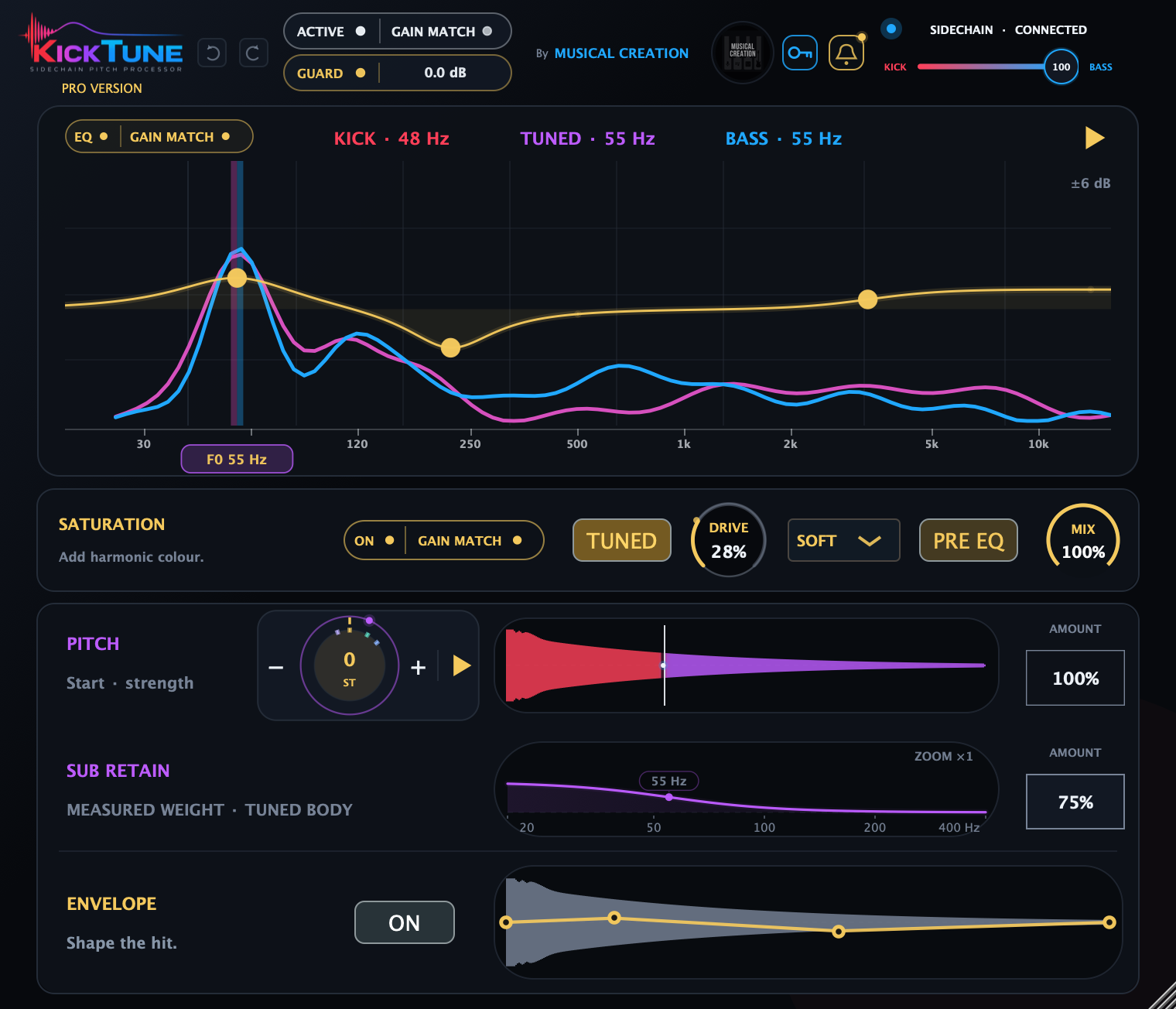
Insert Kick Tune on your kick track. Connect your bass to follow its notes, or tune the kick manually.
Activate or start a trial.
On desktop, open the header key to activate with your email and serial or start the 14-day Pro trial. On iPhone/iPad, manage purchases and restoration in the separate Kick Tune app.
Connect a sidechain source—or tune manually.
In your DAW, route the bass track to Kick Tune’s external sidechain. If your host has a sidechain Mix control, set it to 100% external. Bass is analysed, never mixed into the output. For manual tuning, leave the sidechain unconnected and turn the pitch wheel.
Play and check the input.
Play the kick and check KICK and TUNED. For automatic following, play the bass too: look for SIDECHAIN · CONNECTED and a BASS frequency reading.
Set the tuning.
For bass following, start with Follow, 0 st, 100% BASS and 100% Pitch Amount. Drag the white line to choose where tuning begins. Turn the wheel to add an interval; use Freeze to hold a target.
Shape and compare.
Use Sub Retain to restore lost bass weight. Pro also offers EQ, saturation and a Transient Shaper (ENVELOPE). Bypass the whole plugin with ACTIVE/BYPASSED and enable GAIN MATCH for an unbiased comparison; leave GUARD on.
Read the interface
Display
Meaning
Red / purple kick
Red shows the protected portion; purple marks the tuned body. A matching target can turn purple without needing a pitch shift.
Cyan curve / yellow curve
Cyan shows the bass; yellow shows your EQ settings.
White line
Where tuning begins in the PITCH waveform: red keeps its original pitch; purple gets tuned.
HOLD / HELD
HOLD briefly reuses a recent bass reference. HELD keeps the analyzer visible while playback is stopped. Neither selects pitch Freeze.
The lower waveforms show the source hit, with controls overlaid. Click manual images to enlarge them. On desktop, resize from the lower-right corner. On iPad, the interface adapts to the host window. Click or tap the company logo for About.
Tame Tune · Kick / Bass
Combine the kick and bass as the tuning reference to create different pitch results. Explore the positions in between to find a pitch that fits your groove. 100% BASS follows the bass note; 0% KICK uses the kick’s own note. Pitch Amount controls how far the pitch moves. Bass audio is never mixed into the output. Double-click restores 100% BASS.
Chapter 02
Pitch
Choose when tuning starts, how far it moves and which pitch it follows.
The white line chooses where tuning begins; AMOUNT controls how far the pitch moves.
Coverage and Amount
Drag the white line to choose where tuning begins. The red section keeps its original pitch; the purple section gets tuned. Move it left to tune more of the hit, or right to leave more unchanged. Right-click the waveform to enter a percentage. 0% leaves the whole hit’s pitch unchanged; 100% tunes as much as possible while keeping the initial onset protected.
Pitch AMOUNT: Choose how far the kick moves toward the selected pitch. 0% keeps its original pitch; 100% applies the full tuning adjustment. Drag or type a value; double-click restores 100%. EQ, saturation and the Transient Shaper can still change the sound at zero Amount or coverage.
Tuning without a sidechain
Drag the wheel up or down to tune the kick higher or lower. Tune Coverage chooses which part gets tuned; Amount controls how far its pitch moves. EQ follows the resulting pitch. Saturation and the Transient Shaper still work; Sub Retain can restore bass weight lost when tuning upward.
Pitch tuning does not deliberately reshape the kick’s volume over time, though it can change peaks and bass weight. The Transient Shaper, saturation, Gain Match and Guard can also change the level.
Follow, Freeze and the pitch wheel
Click either gold triangle to keep the current tuning and EQ positions steady. The pause icon means they are held (Freeze); click again to resume following. Both buttons control the same setting, and audio keeps playing. Follow uses the bass when available, otherwise the kick’s own note.
Freeze needs a valid target, some tuned coverage and active processing. It remembers the applied pitch and current Amount; keeping Amount unchanged holds that note, with octave wrapping if the original kick changes. Changing Amount adjusts correction strength relative to the capture.
Drag the pitch wheel from −12 to +12 semitones to choose the interval; +7 st selects a fifth. Each −/+ click moves one semitone. You can adjust the wheel in Follow or Freeze. The final pitch may move to another octave to stay close to the original kick.
Double-click the centre away from a remembered mark to reset only the offset. Pitch edits apply to subsequent hits; they do not retune a tail already sounding.
Read the wheel
Yellow highlights a matching or hovered remembered note.
Pointer and number: your added interval. In Follow, 0 st adds no shift to automatic tuning; without a bass reference, it keeps the original kick.
Colored inner marks: recent tuning references. Click or tap to recall; hover or touch to see the note and adjustment. Yellow marks a match or hover. Nearby marks merge with equal emphasis. At 100% Amount in Follow, the remembered current reference stays at zero; other marks move when that reference changes. Hovering never changes pitch; dragging never snaps. Marks are temporary, not a scale.
Moving outer dot: the applied target; purple in Follow, amber in Freeze. It shows the actual correction relative to the original kick, independently of your offset pointer. Zero is at the top; folding back toward zero can move the dot upward on screen.
Chapter 03PRO
Adaptive EQ
Shape the tone with filters that follow the kick’s tuned pitch.
Yellow points and the yellow curve show your EQ settings.
On desktop, hover an empty part of the graph and click the + to add a filter, up to eight. Open a point’s settings to choose Bell, Low Shelf, High Shelf, High-pass or Low-pass, adjust Q (how wide or narrow the filter is), or turn that filter off.
Drag a yellow point left or right to choose the frequency, and up or down to boost or cut. On high-pass and low-pass filters, vertical movement changes the emphasis around the cutoff (resonance).
Scroll over a selected point to adjust Q. Its settings show precise values; double-click a value to type.
Double-click a point to remove its filter; Undo brings it back.
Click EQ to turn all filters on or off without losing your settings. EQ GAIN MATCH matches the loudness with EQ on and off for an unbiased comparison of your EQ changes.
Bell and shelf gain spans −48 to +48 dB. Pass filters offer 12 or 24 dB/octave slopes. Frequency spans 18 Hz–16 kHz, subject to sample rate; Q spans 0.38–2.5.
The filters follow the kick’s tuned pitch, including manual tuning without a sidechain. Click either gold tuning button to hold their positions steady. With no new pitch to follow, they stay where they are. You can still edit the filters while held. Hover a yellow point to show its settings. For iPad gestures, see Touch controls.
Chapter 04PRO
Saturation
Add warmth, grit or distortion to your kick.
Choose which part of the kick gets saturation, its character and whether it comes before or after EQ.
Control
Use
ON / OFF
Turn saturation on or off without losing your settings. Enable Saturation Gain Match for an unbiased comparison.
DRIVE
Turn up to add more warmth and distortion. At 0%, no saturation is added.
WHOLE / TUNED
WHOLE adds saturation to the entire kick. TUNED adds it only to the purple section after the white line, leaving the red attack free of saturation.
SOFT / WARM / HARD
Choose SOFT for gentle distortion, WARM for a fuller sound, or HARD for a sharper edge. Open the menu, or right-click Drive.
MIX
Choose how much saturation you hear. 0% adds none; 100% applies the full effect at your chosen Drive setting.
GAIN MATCH
Match the loudness with saturation on and off for an unbiased comparison of the added warmth and distortion.
PRE EQ / POST EQ
PRE EQ adds saturation first, then lets EQ shape the result. POST EQ applies EQ first, changing which frequencies drive the distortion.
Drag Drive or Mix vertically. Their readouts show whole percentages; fine adjustments are retained. Double-click Drive to reset to 0%, or Mix to reset to 100%.
Chapter 05PRO
Transient Shaper
Shape the kick’s attack, body and tail with the module labeled ENVELOPE.
Move yellow points to change how loud each part of the kick is.
Drag the yellow points up or down to change the level, and left or right to choose when. Shape the kick’s attack, body and tail. The level ranges from mute to +12 dB; a flat 0 dB line leaves it unchanged.
Hold Shift while dragging for fine adjustment.
Option-click resets a point’s level without moving it.
Double-click restores the point’s default position and level.
Use ON/OFF to turn attack, body and tail shaping on or off. Your settings stay saved.
The Transient Shaper works on the whole kick, even without pitch tuning. Its shape follows each hit’s timing; changes apply to the next hits, leaving the current tail unchanged.
The waveform shows the original hit; the yellow line shows your level adjustments. Listen to judge the result.
Chapter 06
Sub Retain
Restore bass weight lost when tuning the kick upward.
The purple curve shows how much bass is being restored.
Recovery affects only the purple tuned section inside Tune Coverage; the red attack stays untouched. AMOUNT: Choose how much lost bass weight to restore. 100% requests full recovery up to the boost limit; if no bass was lost, nothing is added.
Advanced controls
Right-click the graph on desktop, or tap EDIT on iPhone/iPad. Drag a value up/right to increase it or down/left to decrease it. Double-click resets that value; click outside or press Escape to close.
Control
Range / default
Use
Detect Hz
60–100 Hz / 60 Hz
Choose which bass frequencies to check for lost weight.
Max Boost
+3–12 dB / +3 dB
Set the most bass boost Sub Retain can add.
Q
0.45–1.40 / 0.72
Adjust how wide or narrow the bass boost is.
The frequency label follows the tuned pitch. ZOOM × shows how far the graph has zoomed in to make small changes easier to see; it changes the view, not the sound. All Sub Retain controls are included in both editions.
Chapter 07
Gain Match, Guard and Undo
Compare your changes at similar loudness and control extra peaks.
Guard displays reduction in dB.
ACTIVE/BYPASSED — Plugin Bypass: Bypass the whole plugin to hear the original kick. Enable Gain Match for an unbiased before-and-after comparison.
Gain Match
Match the loudness of the processed and bypassed kick for an unbiased before-and-after comparison. EQ and Saturation have their own Gain Match controls to compare each module on and off.
A filled dot means enabled, a hollow/dim dot means disabled, and a pulsing dot means learning. Allow a few usable kicks to settle before comparing. New instances start all three matchers On.
With header Gain Match on, the bypassed original may be turned down to match the processed kick. With it off, bypass plays the original at its unchanged level. Other enabled processing and Guard can still change the final loudness after EQ or Saturation Gain Match.
Guard
Reduce extra peaks caused by processing. The dB reading shows how much the level is reduced; click GUARD to turn it on or off. 0.0 dB means no reduction. Right-click and choose Reset learned reduction to start its measurement again.
Guard is not intended to repair an already-clipping source or replace a mastering limiter.
Undo / Redo
Undo reverses your last adjustment. Redo restores it.
Use the header arrows or ⌘ + Z / ⌘ + Shift + Z on Mac (Ctrl in place of ⌘ on Windows). Undo covers control edits, survives closing the editor, and clears when a project state is loaded. It is not saved as project history.
Chapter 08
Updates & Archive
The desktop bell keeps release information within reach.
The key manages your desktop license; the bell opens release information.
Click the bell beside the key to open Updates. An amber bell/dot indicates an unread applicable update. Opening its notice marks it read; it does not install anything.
Illustrative release notice. Version numbers and available downloads depend on the published release.
Check for updates refreshes release information. Checks are limited to once per minute.
Archive lists eligible releases older than your installed version. Pre-demo builds are excluded. Select a release to read its notes and download it.
Download for Mac / Windows opens the supplied download page in your browser. The button appears when a download is available.
Trials and paid licenses both show updates here. If no newer release is available, the panel says No updates available. Archive says No archived versions available. until an eligible older release exists. A failed check offers Retry; the small User portal ↗ link opens your account for more information.
Save your project and close your DAW before running an installer, then reopen the DAW. The bell does not replace the running plugin automatically.
Chapter 09
Upgrade to Pro
Add Adaptive EQ, Transient Shaper and Saturation to your existing Kick Tune.
Your DAW lists one plugin named Kick Tune. Your license determines which modules are available; upgrading does not require a separate plugin installation.
Compare base and Pro
Base and Pro feature comparison
Features
Base
Pro
Manual and sidechain pitch tuningTune Coverage, pitch wheel and Follow/Freeze
✓Included
✓Included
Sub RetainCompensates for low-end loss during upward pitch shifts
✓Included
✓Included
Global Gain Match, Peak Guard and Undo/Redo
✓Included
✓Included
Adaptive EQFollows the kick’s tuned pitch
—Not included
✓Included
Transient Shaper (ENVELOPE)Shapes attack, body and tail, adapting to each kick’s timing
—Not included
✓Included
SaturationAdds warmth and distortion to the whole kick or only its tuned section
—Not included
✓Included
Both tiers use the same tuning engine and sound quality. Tuning includes Amount, pitch hints and analyzer readouts; Sub Retain includes all advanced controls.
On desktop
Click UPGRADE TO PRO ↗ below the logo, then Upgrade in account. Use your purchase email; your serial stays the same. After payment, choose Check upgrade. To activate a purchased license, choose Already purchased? Activate. Paid Pro shows PRO VERSION.
On iPad and iPhone
Open APP & LICENSE ↗, then use the separate Kick Tune app’s purchase controls for the one-time Pro upgrade. To recover an existing purchase, choose Restore Purchases using the Apple account that owns it. The mobile plugin has no desktop license-key button.
Your settings stay with the project
A fresh base project unlocks Pro modules with neutral settings. If you open a project that already contains Pro processing while using the base tier, its EQ, Transient Shaper and Saturation settings are preserved but inactive. A dismissible notice explains this; activating Pro restores those saved stages automatically.
Your mobile edition, from host setup to touch editing.
Add Kick Tune as an AUv3 effect on the kick channel in your host. For bass following, the host must support routing a separate track to the effect’s sidechain; select your bass track there. Otherwise, leave the sidechain unconnected and tune manually. The separate Kick Tune app provides setup and purchase management; the AUv3 effect processes audio inside your host.
Pro: short, wide windows put the analyzer beside the modules. Base keeps the analyzer above compact Pitch and Sub Retain rows.
In a taller or fullscreen iPad window, Kick Tune returns to the vertical rack with the analyzer above the modules. Both tablet layouts keep the controls visible without scrolling. The host controls the outer window size. Narrow iPhone views stack the controls and may need scrolling.
Base in a short, wide host window. Illustrative native layout; not a device capture.Taller/fullscreen windows retain the original rack.
Mobile purchases and updates: there is no desktop license key or notification bell. Manage the Pro upgrade and Restore Purchases in the Kick Tune app; install updates through the App Store. Desktop serials and Apple purchases are separate.
Manual tuning, remembered pitch marks and both gold Follow/Freeze buttons work here too. No sidechain is required for manual tuning or shaping.
FINE and direct editing
Tap FINE below Undo/Redo for slower, more precise continuous drags. It applies across the interface, including EQ/Q, pitch, Amount, Transient Shaper, saturation and Sub Retain. FINE starts off and is not a saved sound setting. Pitch −/+ steps by 1 st normally or 0.1 st with FINE on.
EQ gestures · Pro
Tap an empty part of the EQ graph to add a filter. Drag its yellow point left or right to choose the frequency, and up or down to boost or cut.
Hold a yellow point still for about half a second to open or close its settings. Hold another point to show its settings instead; tap outside to close.
Double-tap a yellow point to remove its filter. Undo brings it back.
In the filter settings, double-tap a value to type. Tap the filter type to choose another; use the on/off switch to turn only that filter off.
Touch a yellow point, then add a second finger before its settings open to change Q (the filter’s width). Pinch inward for a narrower curve or outward for a wider one. Lift both fingers before starting again.
For Sub Retain’s advanced controls, tap EDIT in its graph.
Chapter 11
Activation and saved settings
Desktop activation and Apple purchases use different paths.
About and help
The blue By Musical Creation credit opens the company website. Click the separate Musical Creation company logo to open About. It shows your edition, version and license status. Open user manual opens this bundled guide offline; Visit website opens Musical Creation. On desktop, Manage license opens the same panel as the header key. Mobile uses Apple purchase management in the separate Kick Tune app.
The Pro About panel. License status reflects this computer’s current authorization.
Desktop: activate or move a license
Enter your email and serial to activate. The panel shows license status and computer capacity. Use Deactivate this computer before moving an activation. Offline use is available only while your cached authorization remains valid; use Refresh when the panel offers it if verification needs retrying.
iPhone/iPad: purchases and restoration
Manage purchases in the separate Kick Tune app. See Upgrade to Pro for upgrading, restoring an Apple purchase and the distinction from desktop licenses.
Project recall
Your project saves control settings, including the frozen pitch target. Saved values take precedence over new-instance defaults. Temporary pitch hints and Undo history are not saved; Gain Match may need to settle again after reopening.
Only Transient Preserve and Tame Tune have host automation. Preserve uses the inverse coverage value: Tune Coverage = 100 − Transient Preserve. For example, 70% Preserve means 30% coverage. Other settings save with the project but have no automation lanes.
Edition and formats
This guide covers Kick Tune 0.1.5, including base and Pro features. Desktop formats are macOS AU, VST3 and AAX Native for Apple Silicon and Intel, and Windows x64 VST3. The separate iPhone/iPad app includes an AUv3 effect for compatible hosts. Choose the format your DAW supports; mobile and desktop versions may have different release numbers.
Chapter 12
Quick reference
Defaults apply to new instances; saved projects keep their settings.
Shift while dragging; Shift + arrows where supported
Reset pitch offset
Double-click centre away from a mark, or Home
Follow / Freeze
Gold triangle/pause in wheel or EQ header; desktop Space controls DAW
Numeric coverage
Right-click PITCH waveform, enter value, press Enter
Fine EQ / saturation edit
⌘ while dragging; ⌘ + scroll for fine EQ Q
Delete EQ filter
Option-click or double-click the yellow point
Turn one EQ filter off
Option + Shift-click
Toggle whole EQ with focus
⌘ + Option + Shift + B
Reset Transient Shaper point
Option-click: gain only; double-click: gain and time
Sub Retain advanced
Right-click graph; Shift or ⌘ for fine value edits
Reset Guard learning
Right-click GUARD → Reset learned reduction
Undo / Redo
⌘ + Z / ⌘ + Shift + Z
Context menus and on-screen controls provide alternatives where a DAW intercepts keyboard shortcuts.
Chapter 13
Troubleshooting
Check the controls below before changing your sound.
No audible tuning
Check activation, ACTIVE, Pitch Amount and Tune Coverage. Without bass, drag the wheel to tune higher or lower; 0 st leaves pitch unchanged. For automatic following, check sidechain routing. Targets outside the octave range fold automatically. Pitch controls →
No bass reference
Play the bass track and check its routing to Kick Tune’s external sidechain. SELECT IN DAW asks you to choose a source; NO SIGNAL means no usable input is arriving; ANALYZING means a stable pitch has not yet been found. On iPad/iPhone, the host must support AUv3 sidechain routing. Sidechain setup →
Freeze will not engage
Play a measurable kick with a usable target, active processing and some tuned coverage. Capture after the corrected pitch is audible. Changes apply to subsequent hits. Follow and Freeze →
Sub Retain stays flat
It only recovers low-end weight lost through upward tuning. A flat graph at 100% can be correct. Sub Retain →
Saturation seems inactive
Check ON/OFF, Drive and Mix. TUNED needs coverage of the body, but no pitch shift; try WHOLE to include the attack. Saturation →
The level is lower than expected
Check Guard’s reduction and allow Gain Match to settle. Header Gain Match can also turn down the bypassed original. Matching and Guard →
A reopened project sounds dry
Check the license panel, host/plugin bypass and pitch controls. Desktop processing requires a valid license or an active, verified Pro trial. On iPhone/iPad, check or restore the purchase in the separate Kick Tune app. Activation →
No update badge or download
Open the desktop bell and choose Check for updates. Only applicable published releases appear; no badge can simply mean there is nothing unread. If the server is unavailable, retry later. On iPhone/iPad, check the App Store.
The DAW still shows an older version or name
Save and fully close the DAW after installing an update, then reopen and rescan if needed. Existing sessions may retain a custom instance name. Check the version in About.